Do you want to make your Instagram outfit pictures look bright and aesthetically pleasing without paying for presets? Here are easy Lightroom hacks to make your outfit pictures look bright, clean and aesthetically pleasing.
This post may contain affiliate links, which means I’ll receive a commission if you purchase through my link, at no extra cost to you. Please read the full disclosure here.
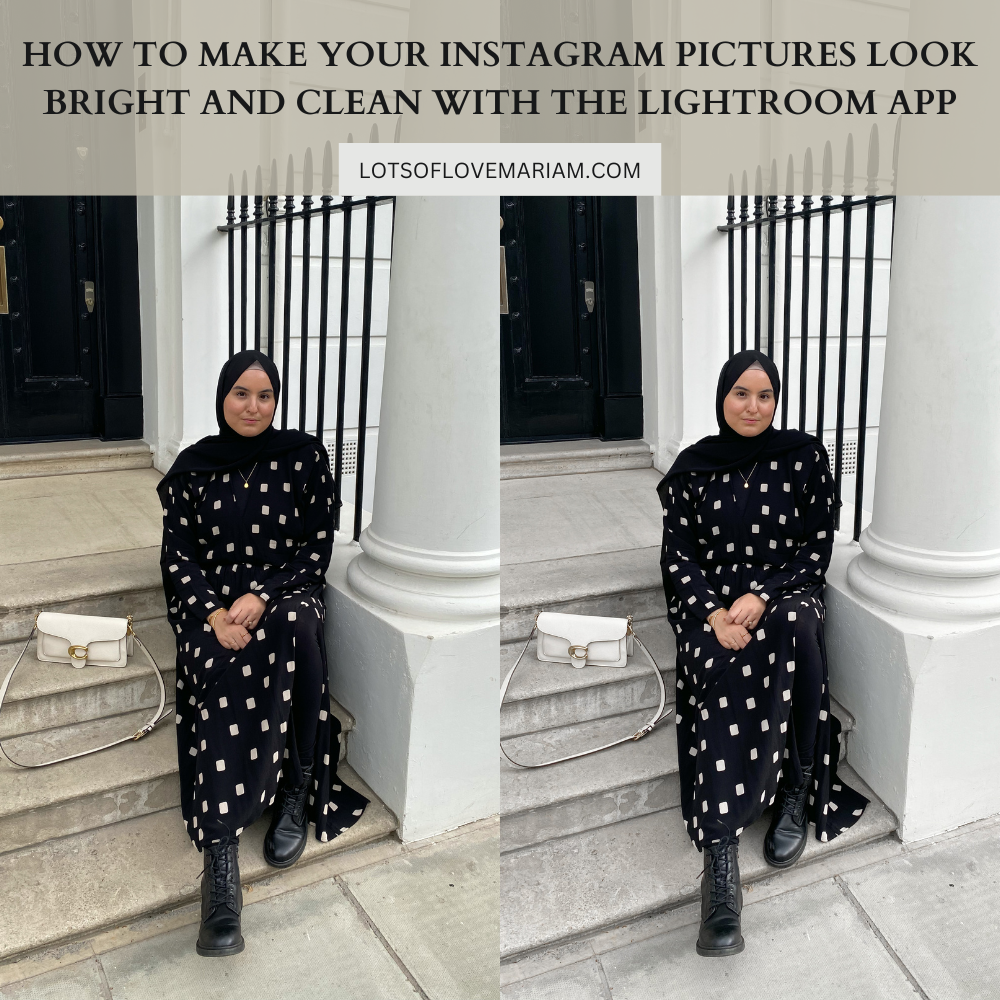
I can be a perfectionist and I like my Instagram feed to look aesthetically pleasing. Even though it’s not as amazing as some people’s feeds, I still like to make all my picture’s brightness and tones look the same! In the past, I have purchased a few Lightroom filters which I was obsessed with. In all honesty, some of the filters look so much better in the ads than they do when you add them to your pictures – so I would be careful when purchasing them.
However, you do not need to purchase any filters to make your pictures look clean, bright and aesthetically pleasing! I wish I knew this before. The Lightroom app is free to download and they do have some features which you’d need to pay for but they are not necessary.
People are now moving to post more unfiltered pictures on Instagram but sometimes the lighting can be off or it can be too dull. Sometimes when I am taking my outfit pictures, the lighting isn’t always perfect so I had to find a way to make them look good and bright without having to spend money.
This Lightroom editing hack will make any Instagram pictures you take look so good! Whether you take them indoors or outdoors. In this post, you will have a step-by-step tutorial on how you can edit your pictures. I won’t be giving specific numbers for each Lightroom edit setting because this will depend on the picture you have and also your preferences. But the step-by-step tutorial will help you create bright and clean pictures.
This post is all about Lightroom hacks to make your Instagram pictures look bright, clean and aesthetically pleasing without having to pay for filters.
Lightroom Hacks
Lightroom Editing Hacks For Bright And Clean Pictures
For this tutorial, you will need to download the Adobe Lightroom app which is a free app!
1. Select Pictures
Select all the pictures you want to edit which will make the editing process quicker and easier. I will explain later on how. See the screenshots below to see how you export pictures into the app.
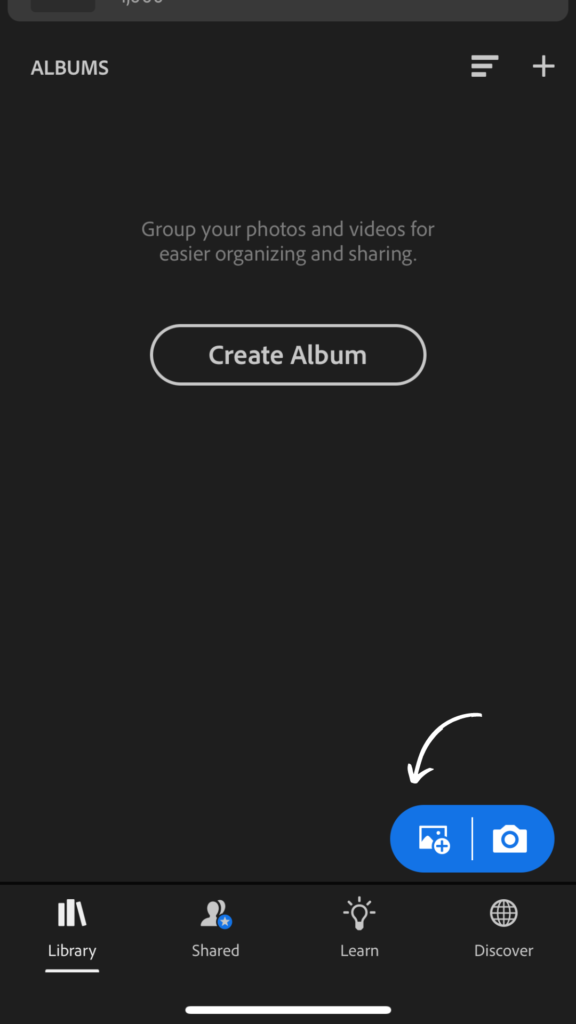
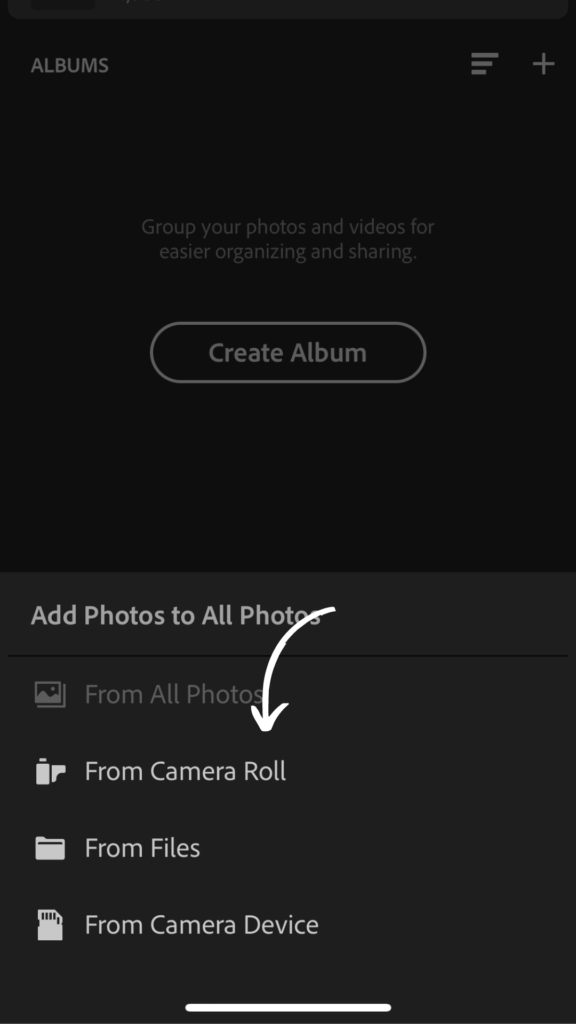
2. Reduce Colour Saturation
This process is what makes the pictures look white and clean. At the bottom, you will see a button called colour, click on that and press ‘mix’ which is at the top of that tab. Select yellow and reduce the saturation to a minus number. In this picture, it is at -83 but this will vary depending on the lighting you took the picture in and also down to your preferences.
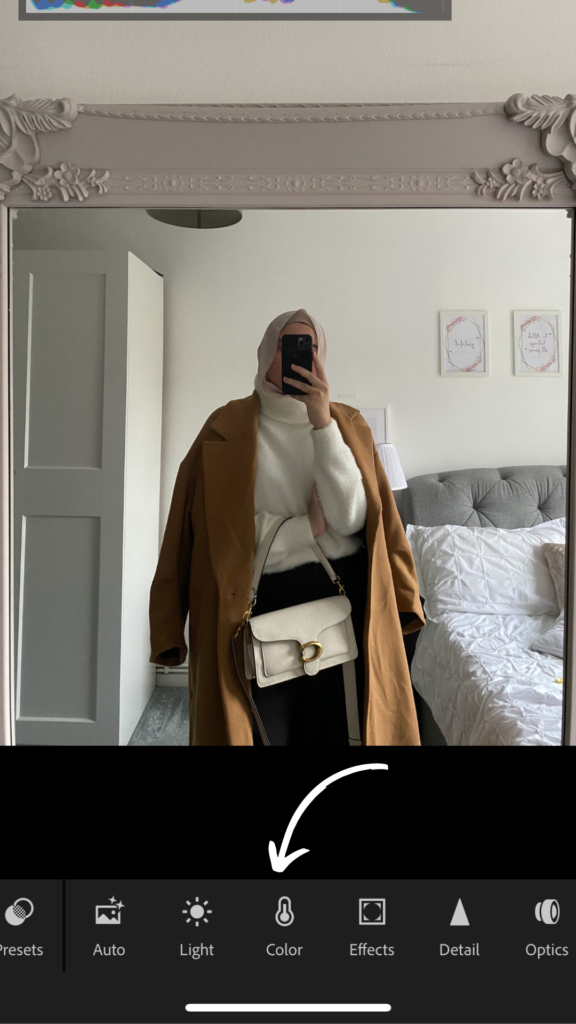
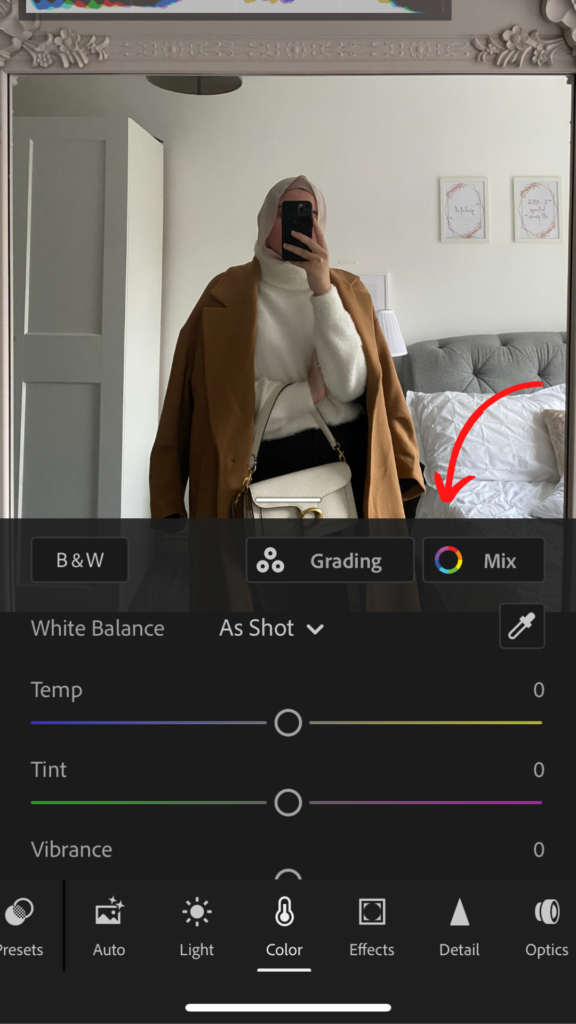
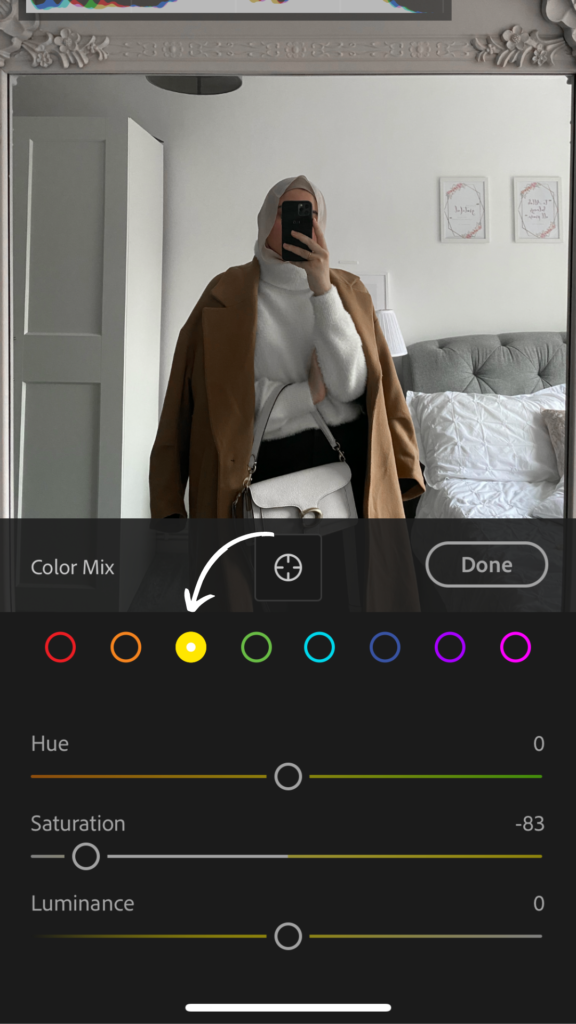
3. Increase Exposure
Increasing the exposure also depends on the lighting. Sometimes adjusting the exposure is not needed. However, as the picture I am using for the demonstration was taken during a dull grey day (poor lighting) exposure is needed to make the picture bright.
For this part, you will need to go to the ‘light’ button which is next to the colour. and increase exposure. Again, how much exposure you choose depends on the lighting and your preferences. For this picture, I increased it to +1.01.
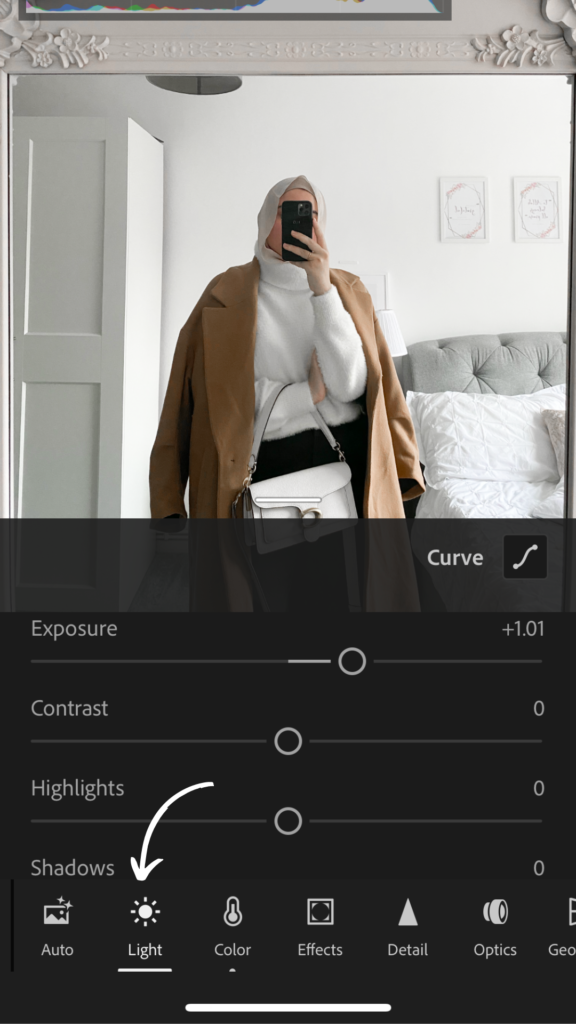
4. Increase The Sharpness
When taking indoor pictures, especially during dull days, the pictures may look fuzzy. So this is when increasing the sharpness comes in handy. At the bottom, go onto ‘detail’ and increase the sharpness. Don’t go crazy with this one, only increase it a little.
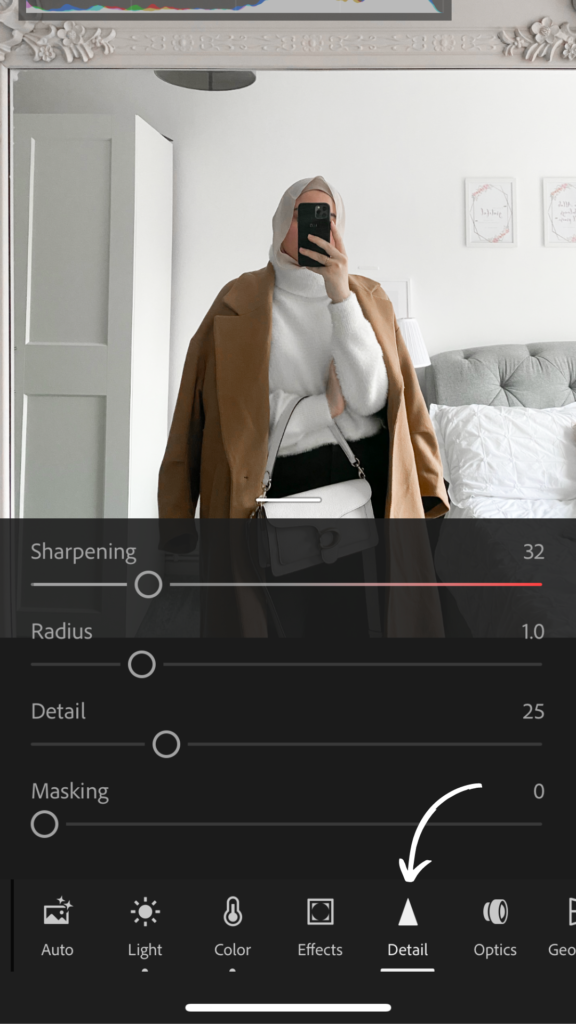
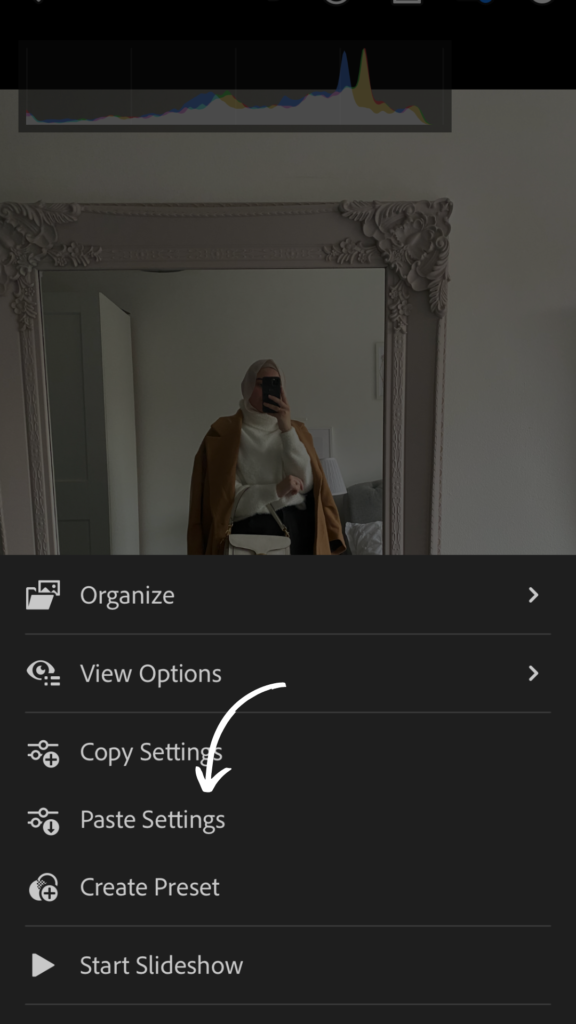
5. Copy Settings
This is the part that makes the editing easy which is why I said at the beginning to select all the pictures at once. If you have taken more than one picture in the same location, all you need to do is edit one picture and then copy the settings. Copying settings will copy all the adjustments you have made and then you’ll be able to paste it to all the other pictures. This helps save you so much time.
Sometimes you may have to adjust the settings as some pictures may come out brighter or darker than others. But all you will need to do for this one is either increase or reduce the exposure and sometimes the same for the colour saturation.
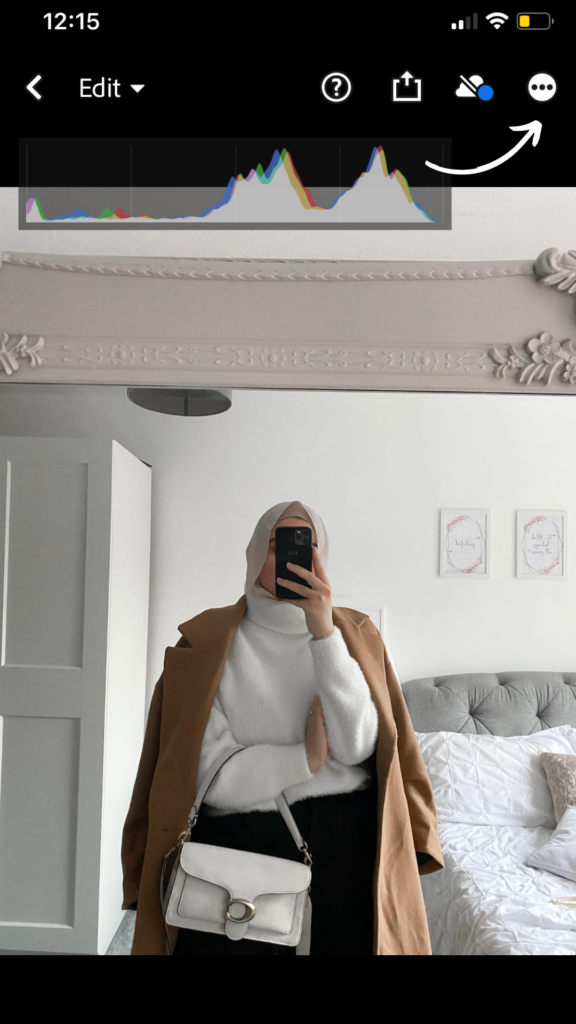
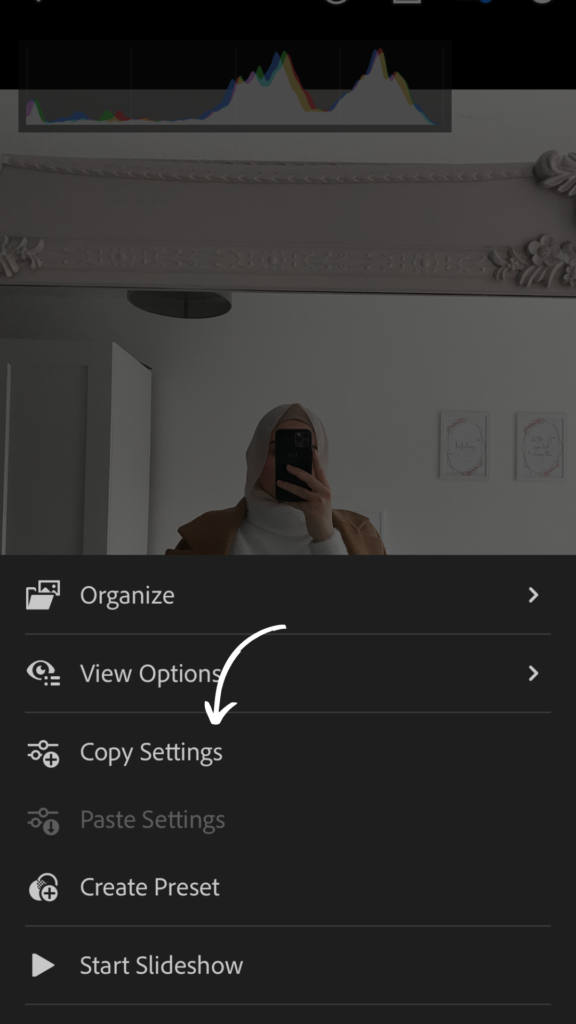
After you have copied the settings, go into the next picture you want to edit.
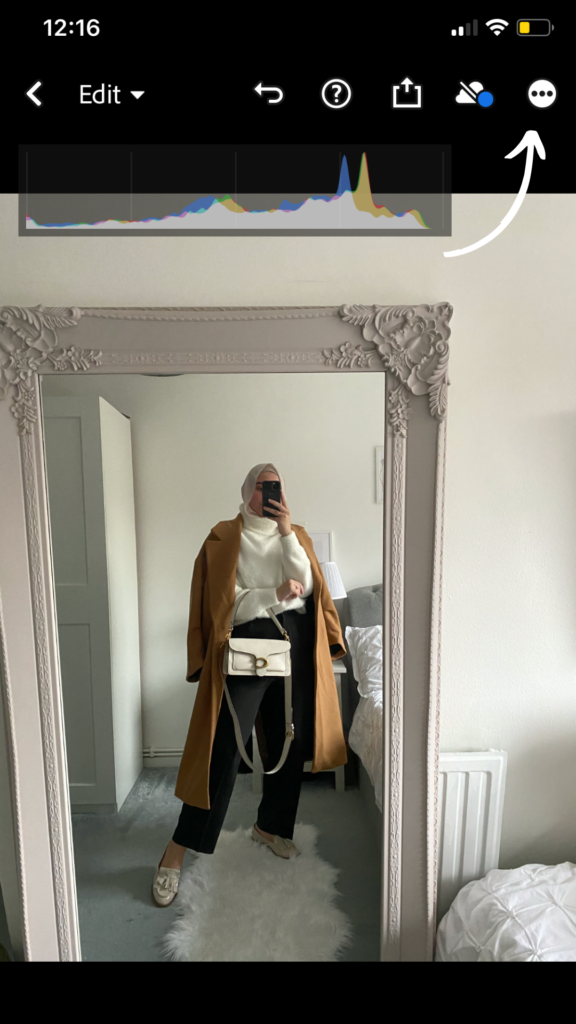
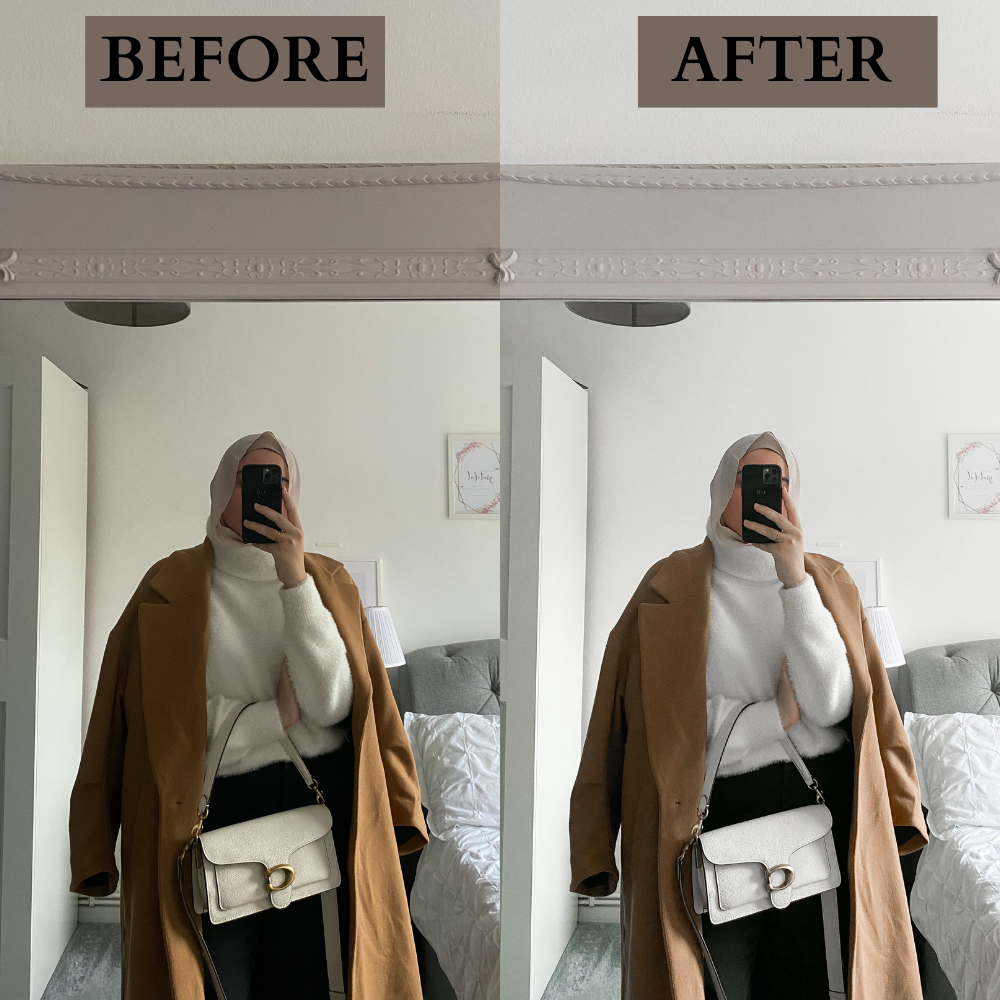
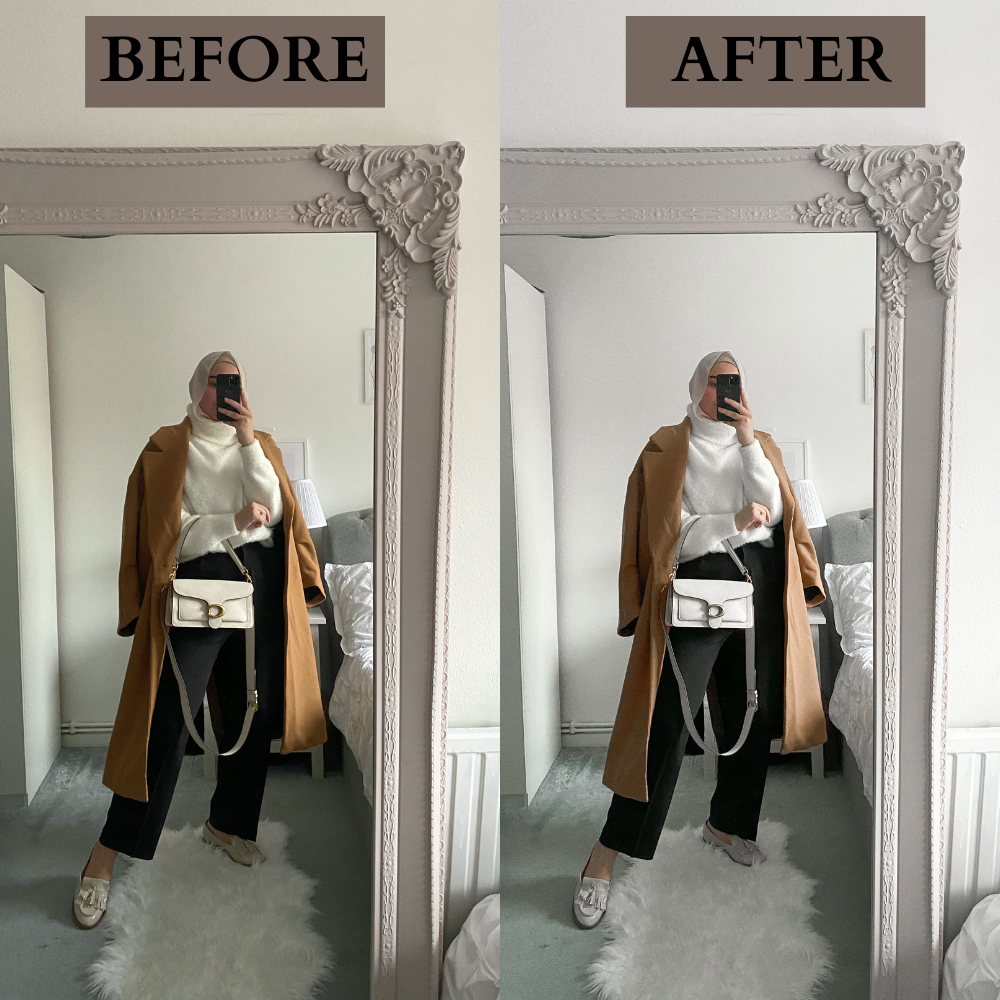
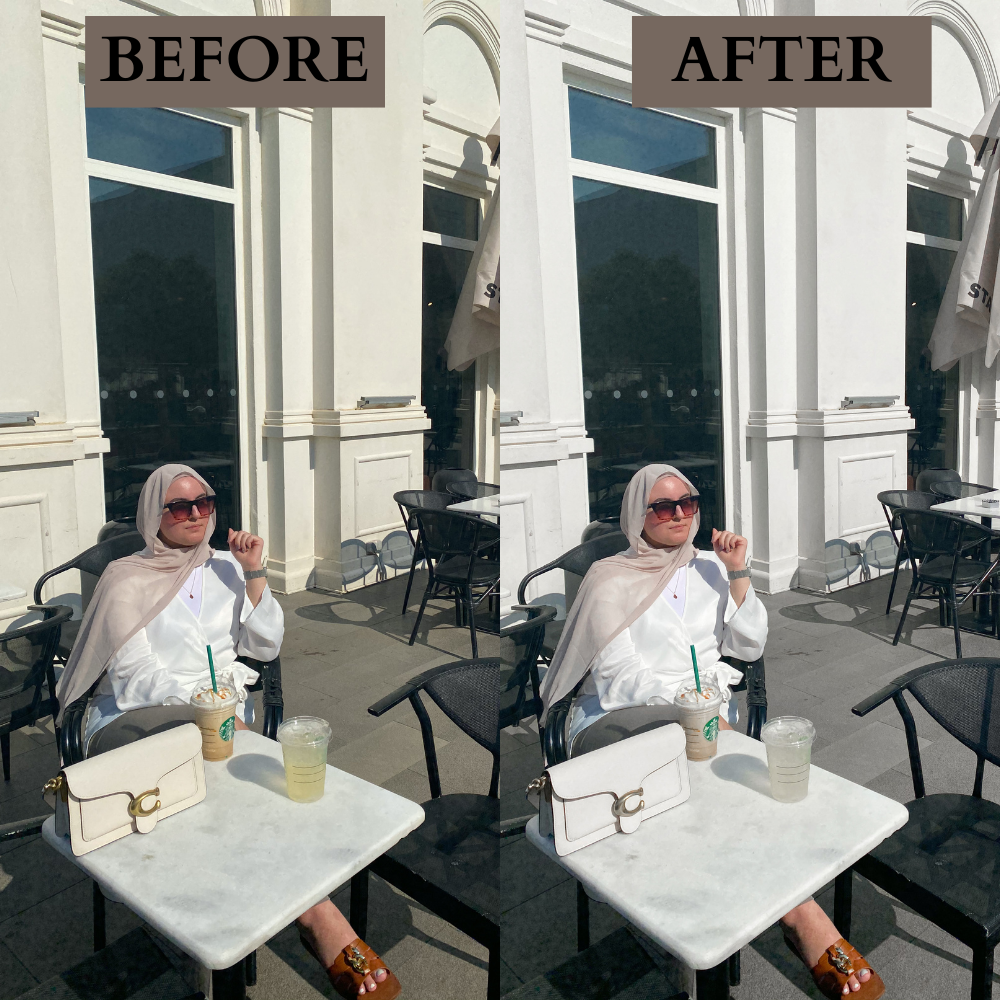
Before And After
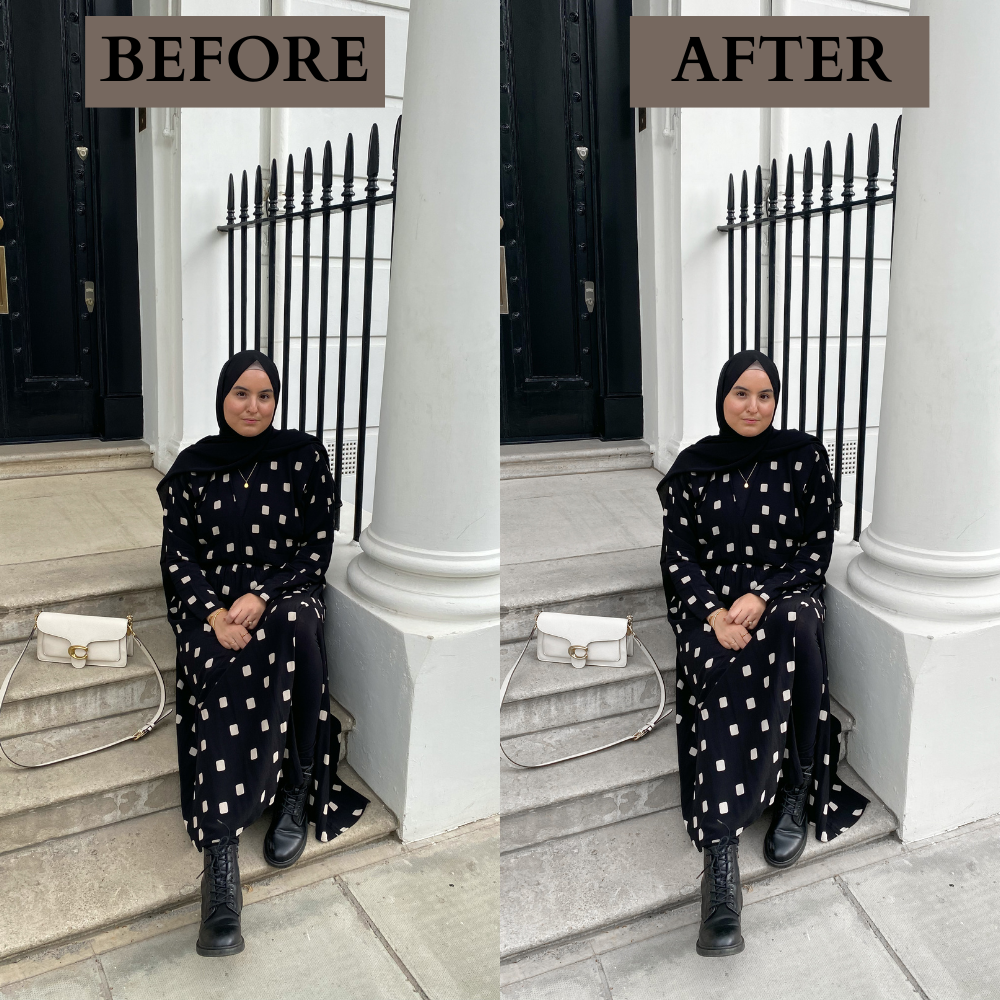
Outdoor Pictures
This is an example of the before and after when I apply the same steps to pictures that are taken outdoors. The only difference is the exposure would be lower due to it already being bright. The trick is to play around with the settings I mentioned to select your preference.
I hope you found this helpful and easy to follow.
Make sure to follow my socials! Instagram, Pinterest, Tiktok and LiketoKnowIt.
Lots of love, Mariam x
If you found this post helpful, please share it on Pinterest with others! Thank you x
Other posts you may also like:
- 3 Cute Cigarette Trousers Outfit Ideas
- 7 Amazon Self-Care Finds Every Girl Should Own
- 16 Best Purchases From 2022 That I Would Highly Recommend

Leave a Reply